Monitor / Import Controls Reference
INPUT Controls
The INPUT section controls the source BWF file to be imported (AudioSuite / Standalone) or played (AAX Native). These settings cannot be saved as Pro Tools presets — they are persistent and saved in a preferences file that is read when the plug-in window opens.
Source
Selects whether a WAV file is the source audio, a live audio stream is the source audio, or off to output only zeros.
Note
Bypassing the plug-in via the Pro Tools bypass control allows the track audio to pass through in the AAX Native version.
Browse
Launches a dialog to browse the file system and choose a WAV file for subsequent importing (AudioSuite) or playback (AAX Native).
Spot To (AudioSuite)
Controls how the audio from the WAV file is located when imported into the Pro Tools timeline:
- Selection — located to the start of the timeline selection.
- Timecode — located at the time code start of the WAV file (available if the file has embedded time code).
- Session Start — located to the start of the Pro Tools timeline (available if the file has no embedded time code).
Sync To (AAX Native)
Controls the timing for playing back the WAV file audio:
- Session Start — the start of the file is aligned with the start of the timeline.
- Timecode — the audio is aligned with the time code start of the WAV file (available if the file has embedded time code).
Length (AudioSuite)
Selects how much of the WAV file is played:
- Entire — the entire WAV file plays no matter what length is selected in the timeline.
- Partial — the length of the timeline selection determines how much of the file plays.
Counter (AAX Native)
Shows the running timecode counter when playback is engaged. Shows waiting when the timecode has not yet reached the start of the file (if the file did not start at the beginning of the timeline), and finished if the running timecode has gone beyond the end time of the file.
Play (Standalone)
Plays back the selected WAV file. Adjust the slider position to change the playback location.
AUDIO PLAYBACK Controls
Configuration
Selects the audio channel layout of the BWF file. If the file already contains layout information, this is set automatically. For files that do not specify a channel layout, this control lets you set it (as 5.1 + Stereo, for example).
Program
Selects the audio program to be imported (AudioSuite) or played (AAX Native). If the file contains more than one audio program, each program is shown as a choice here, including all programs at the end of the list.
Dolby E Decode Enable
Enables the Dolby E decoder.
Dolby E Decode PCM Pass Thru
Passes PCM audio through the Dolby E decoder.
Dolby E Decode Program
Sets which Dolby E program to import or monitor. Select the last entry to monitor or import all programs simultaneously.
Output Channel Order (AudioSuite only)
Sets the output channel order used when importing audio from a BWF file into the session. For example, if the individual channels in a 5.1 multichannel file are in SMPTE order (L, R, C, Lfe, Ls, Rs), this control chooses between Film order (L, C, R, Ls, Rs, Lfe) and SMPTE order when importing the individual mono elements.
STATUS Controls
The Main, Dolby, and Prog1…Prog8 controls select between different sets of metadata information for display. Clicking them switches the status display between pages.
Main STATUS items
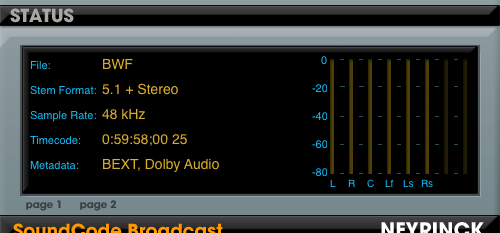
- File / Stream — the type of audio being monitored.
- Stem Format — the stem format of the audio being monitored.
- Sample Rate — the sample rate of the audio being monitored.
- Timecode or Timestamp — the start SMPTE time code of the audio being monitored. The frame rate is shown at the end of the value, where ND indicates non-drop frame and DF indicates drop frame. If the file does not contain Dolby E metadata but does contain a BEXT chunk, the BEXT timestamp is displayed.
Dolby STATUS items
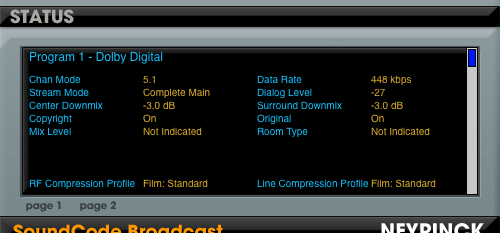
Displays the Dolby E metadata associated with the audio being monitored.
Prog1…Prog8 STATUS items
Each page displays detailed metadata information for each audio program being monitored. Refer to Dolby Encoding Guidelines.pdf for more information about these values.
Dolby E Hardware Mode (AAX Native only)
The AAX Native Dolby E Monitor features an additional control called hw mode. It is enabled when the Pro Tools system is used as a standalone Dolby E decoder decoding a live Dolby E stream being monitored. It is only available when the Input Source is set to Track Stream.
When enabled, the Dolby E decode latency is one video frame. To operate correctly, the AAX Native buffer size must be set to 256 in the Playback Engine dialog.