Setting Up Cubase / Nuendo
V-Control Pro provides Steinberg control surface plug-ins for high performance control with all surfaces except the V-Control Pro 1.9 iPad App.
Legacy V-Control Pro 1.9 iPad App
The legacy iPad app, V-Control Pro 1.9, must be set up as a HUI control surface in Cubase / Nuendo. See V-Control Pro 1.9 iPad App below.
Add Your Surface
- Open the V-Control Pro Setups window and make sure your surface has been added to the
Controllers...section and is actively detected. - Launch Cubase or Nuendo.
- From the top menu bar, choose
Studio > Studio Setup.... - Click
Add Device(the+button) and select the item that matches your surface: D-Command, ProControl, C24, Control 24, Command 8, Digi 003, V-Console, or V-Console 16. - The surface appears under
Remote Devices (Legacy). Select it to show its settings. - Leave
MIDI InputandMIDI Outputset toNot Connected. V-Control Pro connects to Cubase / Nuendo directly and does not use MIDI ports. -
D-Command and ProControl only: set the
Bankpopup menu to the total number of faders on your system, counting the Main unit plus every Fader Module or Fader Pack. This lets all of the faders work and bank together as one surface.Your System Bank Main only 8 Tracks Main + 1 Fader Module / Fader Pack 16 Tracks Main + 2 Fader Modules / Fader Packs 24 Tracks Main + 3 Fader Modules / Fader Packs 32 Tracks 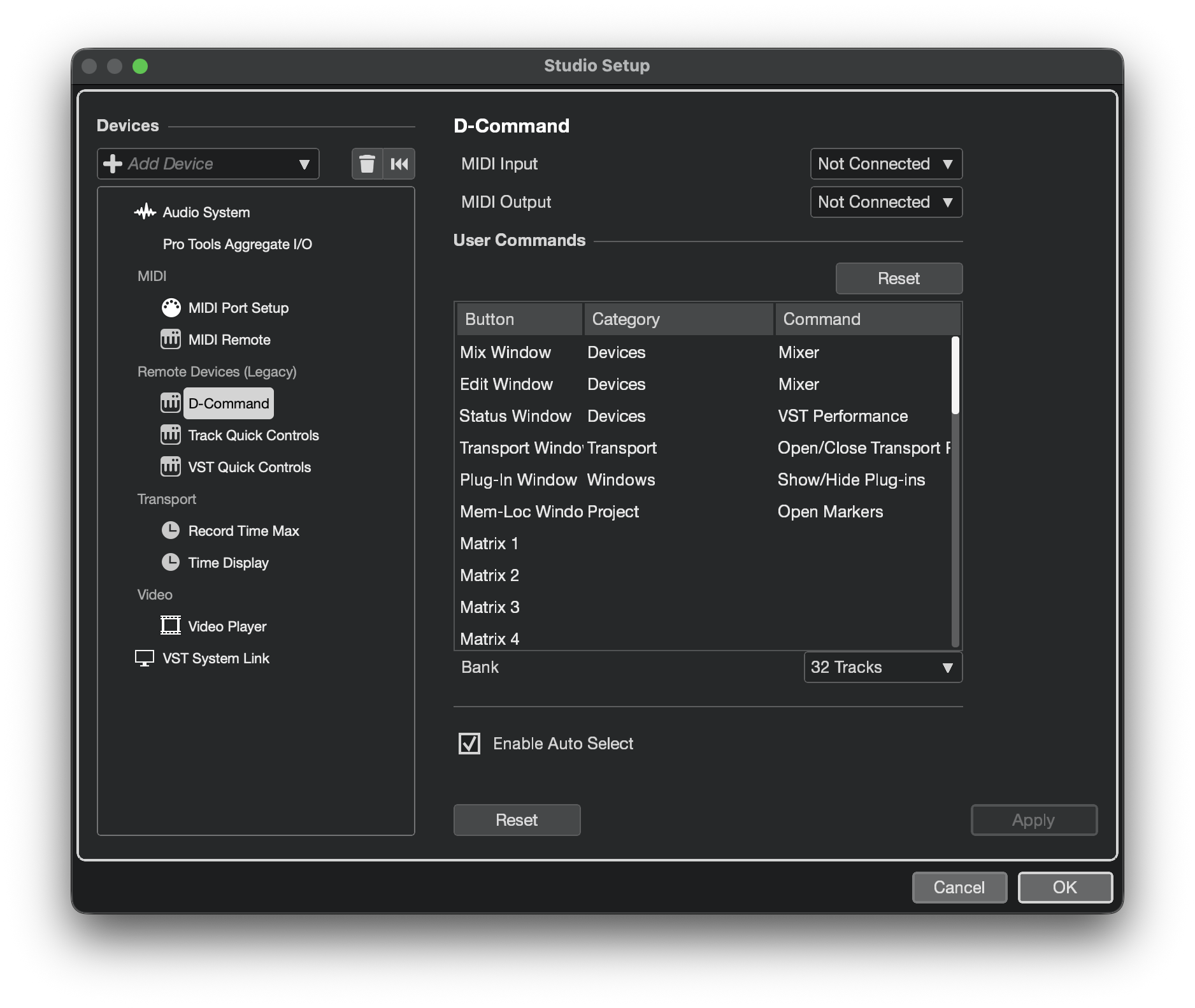
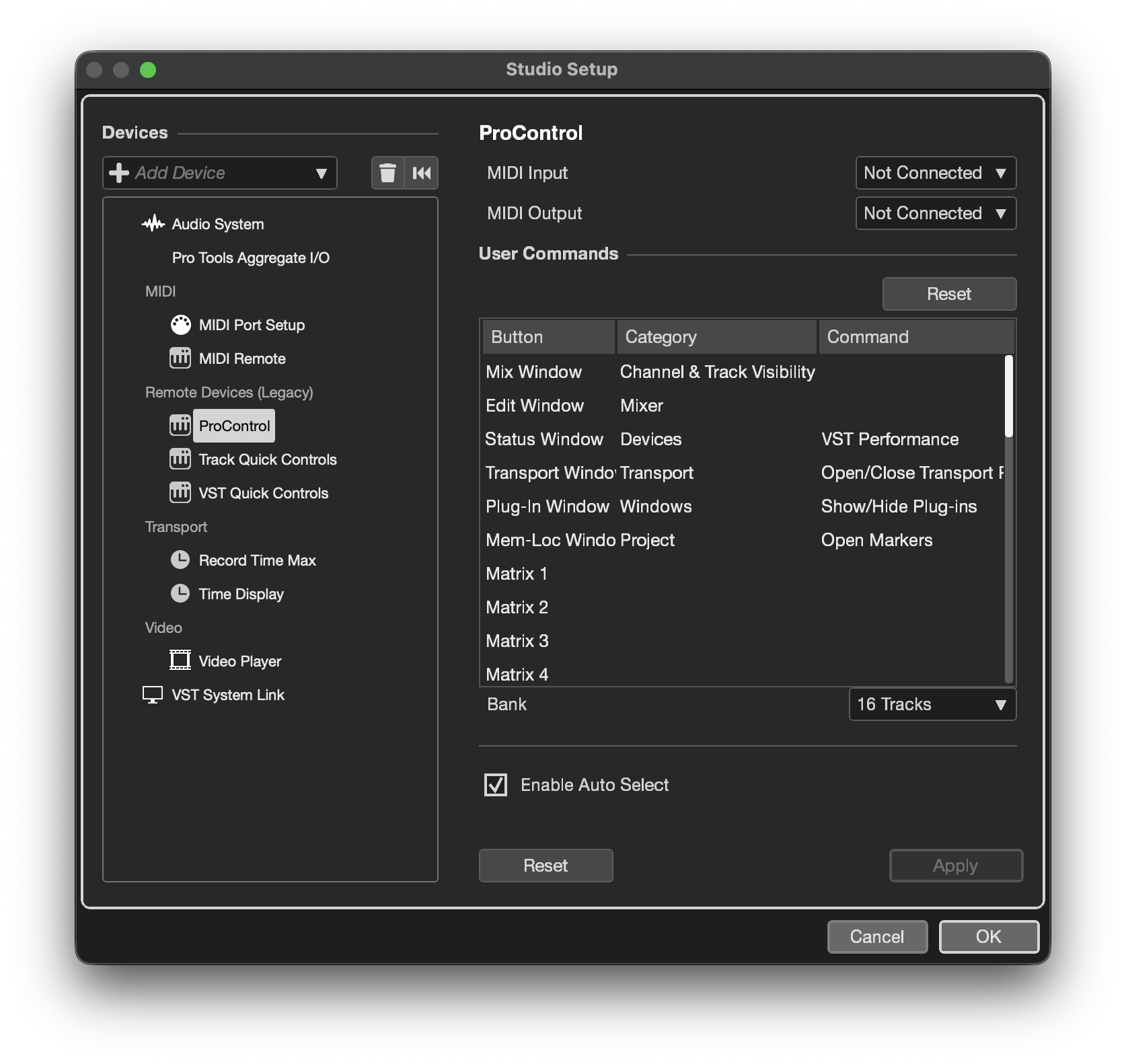
Other surfaces have a fixed number of faders and do not show a
Banksetting. -
Optionally, assign commands to the surface's buttons in the
User Commandslist. - Click
OKto close the Studio Setup window.
V-Control Pro 1.9 iPad App
- From the top menu bar, choose
Studio > Studio Setup.... - Click
Add Device(the+button) and selectMackie HUI. - Set
MIDI InputandMIDI OutputtoV-Control. - Click
OKto close the Studio Setup window.